
Import an Existing Configuration to a New WatchGuard Firebox Device
1. Register your new appliance on your WatchGuard Portal
2. Download the Feature Key by selecting the Product and Get your Feature Key, copy and save this to a notepad file.
3. Download the latest Fireware firmware (The sys-dl file one) and also the latest WSM software from Here https://watchguardsupport.secure.force.com/software/SoftwareHome
4. Connect your PC to your new WatchGuard Firebox using Interface 1.
5. Login to your new appliance from a web browser on https://10.0.1.1:8080 (making sure your PC is using DHCP) the login details will be admin and the password is readwrite.
6. Run through the wizard you can use the default settings as we will be overriding this with the configuration from the old appliance, be sure to add your Feature Keys when prompted.
7. Login to the Firebox using the Web GUI and upgrade to the latest Firewire version in System/Upgrade OS, choose I have and upgrade file, when the Firebox has uploaded the Firmware and rebooted follow the next procedure.
Importing and converting the Configuration File in WSM
8. Install and run the latest WSM, go to Tools / Policy Manager and Select Open configuration file and choose the exported configuration file from the old Firebox.


9. Next go to Setup/System and change the Device Configuration to match your new Firebox

If you would like to upload the file using the Web GUI skip the next part and go to the 'Web GUI Method' section below
10. If you want to save the new Configuration using the WSM directly to the new appliance, select Setup / OS Compatibility make sure that the Fireware version is 12.0 or higher and select ok.

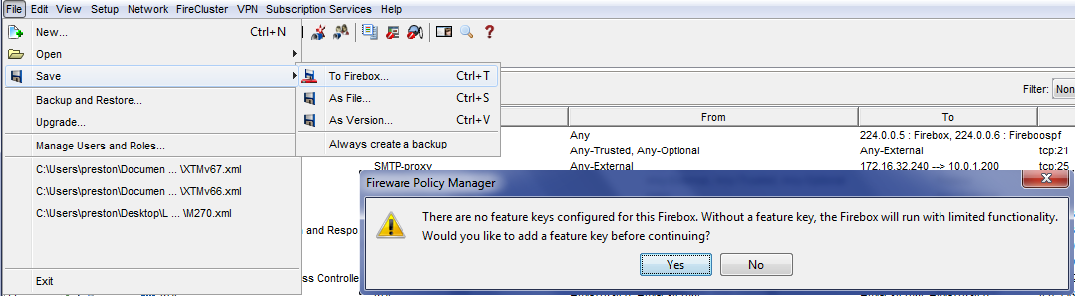
11. Now go to File / Save / To Firebox, you will get the warning as below as you will need to add your new Feature Keys, select Yes.
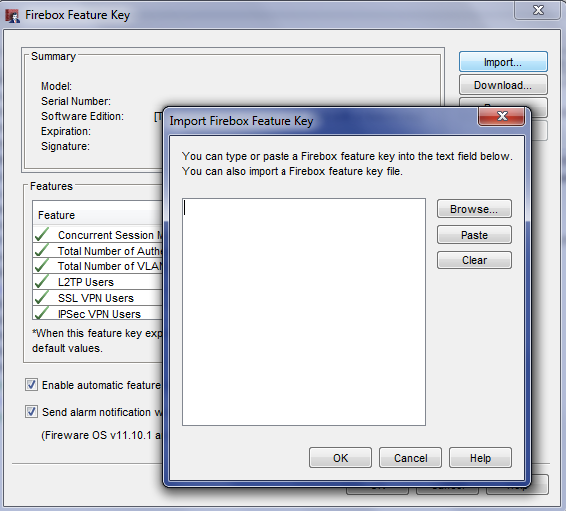
12. Select Import and copy and paste your Feature Keys in and select ok.
13. You will now need to log in using the Read Write password you entered on the Wizard, you may also get a warning about the IP addresses not matching any on the Interfaces in the Config File, just select Yes to continue.

Web GUI Method
With the Release of Fireware 12.2 you can now import Configuration files as well as exporting them in the Web GUI.
For Configuration files of the same Firebox model you can import directly in using the method below.
For Configuration files of different Firebox models, you will first need to convert them as in the WSM procedures mentioned above.
1. Log in to your Fireboxes Web GUI and go to System/Configuration File, browse to the configuration file you wish to import and select Restore.

2. Once the Restore is complete you will need to Browse to your Fireboxes new IP to login again.

Copyright NetThreat Ltd
By Preston Keel
